
Disclosure: This article contains affiliate links. If you choose to use the service through these links, we may earn a small commission at no additional cost to you. The opinions shared here are based on practical experience and independent evaluation.
If you are setting up a website, learning how to install plugins on WordPress.com is one of the first things you should understand. Just so you know, WordPress.com now allows plugins across all paid plans.
The process is straightforward. However, the real difference comes from choosing the right plugins and using them effectively.
As a WordPress.com partner, we’ve worked on different types of websites, and one thing remains consistent. A simple and well-planned plugin setup always performs better than adding too many tools at once.
In this guide, you will learn how to install plugins on WordPress.com step by step, along with a practical approach to using them.
Before You Install Plugins on WordPress.com
Before you begin, take a moment to plan your requirements.
A common mistake is installing multiple plugins without clarity. This often leads to unnecessary complexity and affects performance over time.
Start with a simple question:
???? What does your website actually need?
For example:
- A business website may need enquiry forms
- A content website may need SEO tools
- A service website may need lead capture
When your requirements are clear, selecting a plugin becomes much easier.
How to Install Plugins on WordPress.com?
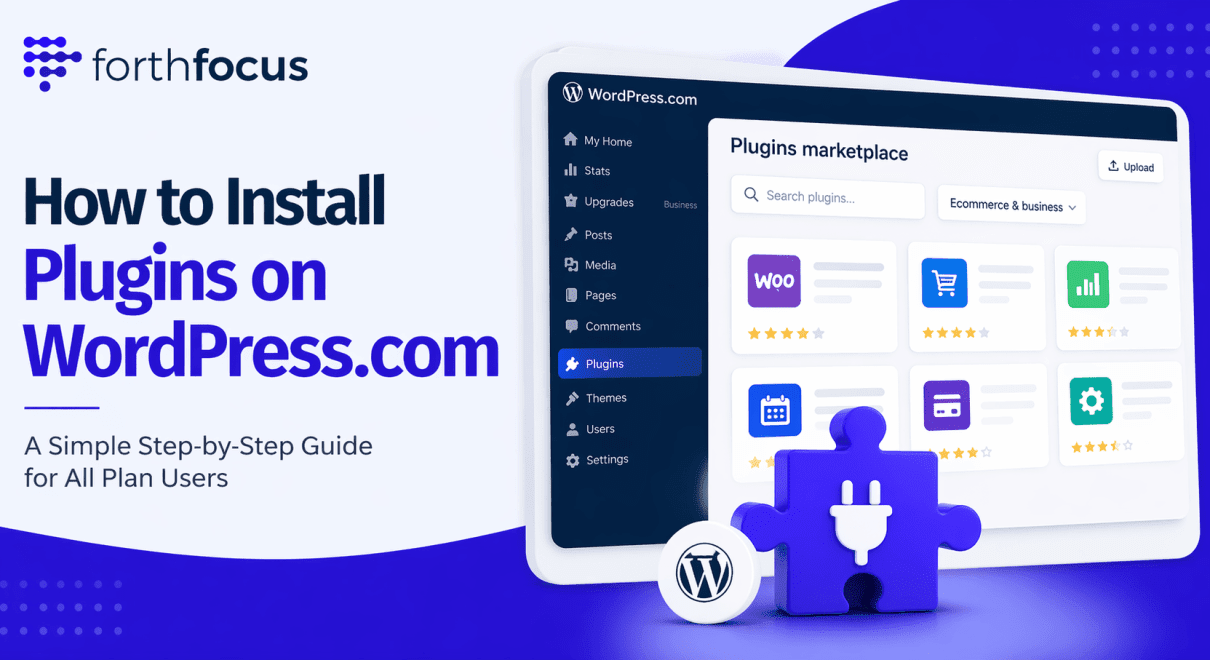
The process is simple and can be done directly from your dashboard.
Step 1: Log in to Your Dashboard
Access your WordPress.com account and open your website dashboard.

Step 2: Navigate to the Plugin Section
From your dashboard, go to the plugin management section.
This is where you can explore and manage plugins.

Step 3: Search for a Plugin
Use the search option to find what you need.
Focus on your requirement instead of exploring multiple options at once.

Step 4: Install and Activate the Plugin
Select the plugin and install it.
The platform handles the installation automatically.
Once activated, it becomes available for configuration.

How to Choose the Right Plugins?
Choosing the right plugins is more important than installing many plugins.
A simple approach works best:
- Use one plugin per requirement
- Avoid overlapping functionality
- Prefer well-maintained plugins
- Keep your setup minimal
This keeps your website stable and easy to manage.
What to Do After Installing Plugins?
Installing a plugin is only the first step.
After installation:
- Configure basic settings
- Test the feature
- Check how it works on your website
For example:
- Submit a test enquiry
- Review how the output appears to users
This ensures everything works as expected.
Combining Plugins with Design Adjustments
Plugins add functionality. Design adjustments improve the overall experience.
In most setups, small changes like spacing, layout, and structure can make a noticeable difference.
Keeping things simple and consistent always works better than over-designing.
Common Mistakes to Avoid
From practical experience, these are the most common issues:
- Installing too many plugins
- Using multiple plugins for the same purpose
- Skipping testing
- Not updating plugins
A focused setup always performs better.
A Simple Setup Example
Let’s take a basic business website.
You can start with:
- One plugin for enquiries
- One plugin for SEO
- One plugin for security
Then:
- Configure each plugin
- Test all features
- Make small design adjustments
This is enough to build a strong and stable foundation.
Final Thoughts
Learning how to install plugins on WordPress.com is simple. What matters more is how you approach it.
A structured setup, clear requirements, and minimal plugin usage lead to better performance and easier management.
Start with what you need, keep it simple, and expand gradually.
Explore WordPress.com PlansFrequently Asked Questions
Yes. Plugins can now be installed on WordPress.com on all plans, directly from your dashboard.
To install plugins on WordPress.com, log in to your dashboard, go to the plugin section, search for the plugin you need, install it, and then activate it. After activation, you can configure the plugin based on your requirements.
Yes. The process to install plugins on WordPress.com is simple and beginner-friendly. Most plugins can be installed and configured without coding or advanced technical skills.
Before installing plugins, define your requirements clearly. Install only what you need, avoid duplicate functionality, and choose plugins that are actively maintained.
After installing plugins, you should configure settings, test the functionality, and verify how the feature works on your website. This ensures everything is working correctly.
There is no fixed limit, but it is recommended to install only the plugins you need. A minimal setup improves performance and makes your website easier to manage.
Need help setting up your WordPress.com website?
As a WordPress.com partner, we help businesses build clean, scalable, and high-performing websites.
Get in Touch


2 Comments